PDF Eraser is a freeware product designed to help you edit your PDF files in many easy ways. PDF files are undoubtedly one of the most popular data file types used today. Although it has many advantages to its format, there has always been an issue when it came to the topic of editing these files. Unlike other data file types like Word, PDF files cannot be edited so easily. However, in recent years due to innovation in technology and software, there has been a rise in tools that push the limits of what we thought we could do. PDF Eraser for Windows is one such tool that is slowly becoming more and more popular with each passing day.
PDF Eraser review
PDF Eraser acts as an eraser for PDF files amongst other things. You can erase or delete any unnecessary information from your PDF files quite easily using this tool, and in this regard, it certainly does live up to its name. Must Read:iMyFone recover deleted text messages iPhone without backup
But is that all it does? We’re here to find out.
Installation
The first thing I noticed was that the installation of PDF Eraser didn’t come with any bloatware or toolbars. Often, most freeware products install both into your PC making it extremely inconvenient for you. But with the PDF Eraser, I found no such issues and was pleasantly surprised by this fact. This software is incredibly easy to download and install.
Once you have downloaded the setup file from
pdferaser.net, you can just open it, and in a few seconds, the software will be installed. There is no need to click on endless pop-ups asking for permission or unique side tools to install etc. It’s clean, quick and direct.
Interface and Use
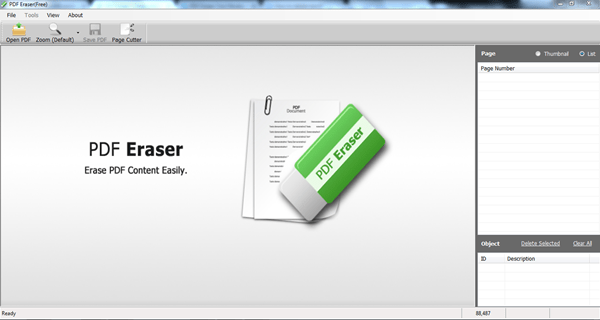
The interface is an important aspect of any software. In fact, it can actually make or break a software because the ability to use the tools offered by a software and the clarity of its use is extremely important. What would be the point of a great tool if the display of its controls is way too cluttered to figure out and use? Fortunately, the PDF Eraser has a simple, clean and minimalistic user interface. Everything you need is right there in front of you. You have a menu bar at the top and a unique ribbon type menu right below it. It takes just 5 minutes to understand everything about what this software is and what all it can do.
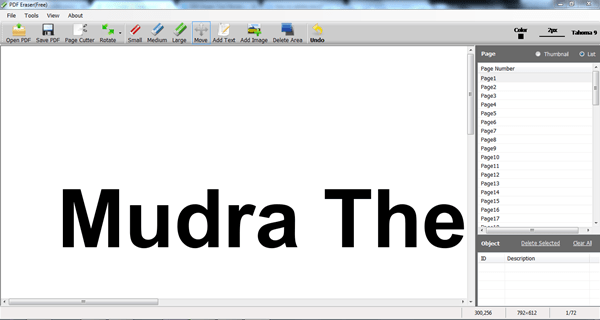
Once you have opened up the software, simply open a PDF file to get started. Once that is done, you will see that the ribbon menu gets expanded with new options such as rotate, the size of an eraser, add text, add image option, etc. You will also see the left side of the interface is divided into two sections.
The top section displays the various pages in the PDF, and you can switch between thumbnail view and list view according to your preference. The lower section shows us the ID and description of the options you have used. This section also has two options, and they are the “Delete selected” option and the “Clear All” option. In essence, the lower section acts as a history state where it shows you what tools you have used while editing and they are displayed in the order of their use. You can delete these actions by either selecting specific ones or simply clear all of them to revert your file to its original state.
Software to edit PDF files
Given below are some of the features of PDF Eraser:
1) ADDING AND DELETING INFORMATION
When it comes to editing PDF files, one of the most common purposes is to add and delete information from them. Various tools have different and unique ways of achieving this purpose. In PDF Eraser, it’s extremely easy to do so due to the simplicity of the U.I. You can add or remove various objects like tags, images and much more with just a few clicks.
2) CUSTOMIZABLE ERASER SIZE
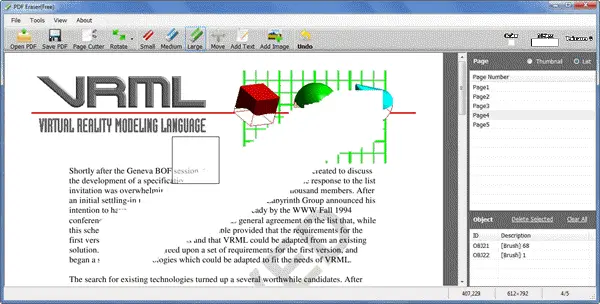
The Eraser tool comes with the option of three sizes, namely small, medium and large. This is very helpful especially if you have a tablet since it makes it very intuitive to erase.
3) ROTATE PAGES
They are displayed either upside down or oriented in a wrong way. The “Rotate” option in PDF Eraser allows you to correct the orientation of PDF pages with a single click.
4) PDF PAGE CUTTER
You can use the PDF page cutter option to remove any undesired pages conveniently. With large PDF files, one issue that a lot of people run into is the fact that large documents are often cluttered with irrelevant information. Nobody likes to read 200 pages of report or data when over half its pages are filled with information that is irrelevant and redundant. The PDF page cutter option is an excellent tool to streamline and de clutter your PDF files by removing unwanted page in a single go.
Verdict
The PDF Eraser software is a simple and easy to use editing tool for PDF files. It offers exactly what it claims to do, and that is helping you erase unwanted data from your files. There are a couple of cons though. One of them being that the final document you save in the free version will have a watermark on it. You need to upgrade to the pro version to get rid of the watermark. But all in all, it’s an extremely easy to use PDF editing tool and if that’s what you’re looking for, you should get it.If you lost videos from iOS Camerall Roll which are nowhere to download again, you can use
Gihosoft iPhone Data Recovery to
get back deleted videos from iOS device including iPhone, iPad and iPod Touch.
Jihosoft iPhone Backup Extractor Extract and recover all types of data from iPhone backup files, such as camera roll photos, videos, SMS, contacts, reminders, WhatsApp, and etc.
Gihosoft Android data recovery Free is a super awesome software specialized in Android file recovery. With this program, you are able to recover deleted photos, music, videos, messages, contacts, call logs, WhatsApp messages, Viber chat history and more from Samsung, Huawei, LG, HTC, Motorola, Google, Oneplus, Sony, Lenovo, ZTE and other Android devices directly. Meanwhile, this Android data recovery software is available for both Windows and Mac platforms.


