How to Activate Wireless iTunes File Sharing
Apart from using a USB to make a connection between your iDevice and your PC or MAC, you can do the same wirelessly.
Step 1. First, connect your iDevice to your computer once, and select it in iTunes.
Step 2. Then locate and click the SUMMARY category under SETTINGS.
Step 3. Scroll down to the OPTIONS section and enable the “Sync with this [iPhone or iPad] over Wi-Fi” option.
Sponsor Ads:
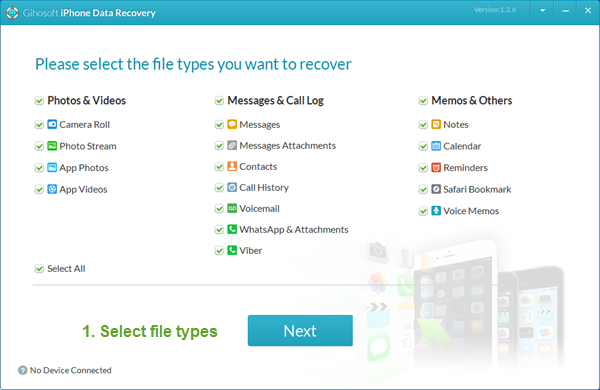
Gihosoft iPhone Data Recovery is a professional iPhone Data Recovery software to get back all your lost text message, photo, video, call history, note, contact and more from iPhone/iPad/iPod Touch. It offers a full solution to recover your lost data in different tough situations. Besides recovering data directly from iPhone, iPad and iPod touch, it also allows you to recover data from iCloud and iTunes backup files.

Step 4. After this, click Apply to save the new change.
Now when your iPhone or iPad is charging, iTunes is opened on your PC or Mac and both are sharing the same Wi-Fi Network, you can easily get your device as an option in iTunes. Then you can go to Apps, then choose File Sharing option and move files around as you want, like your device is connected with a cable.
Jihosoft Android Data Recovery: the best Android Data Recovery software for Windows and Mac to recover deleted contacts, messages, photos, videos, WhatsApp and etc from Android devices.
Any app suggestions or topic recommendations are appreciated in the comments down below.